Feature: Gate/TTG Maps
Concept
Happy Hare tracks filament using a handful of "maps," exposed as printer variables so your own macros can use them too:
- Gate map - what's actually loaded in each gate right now: material, color, temperature, availability, and (if you use it) Spoolman's spool ID.
- Slicer tool map - what the slicer expects for each tool in the current print, read from the g-code file. Only valid for the print currently loaded - each new print replaces it.
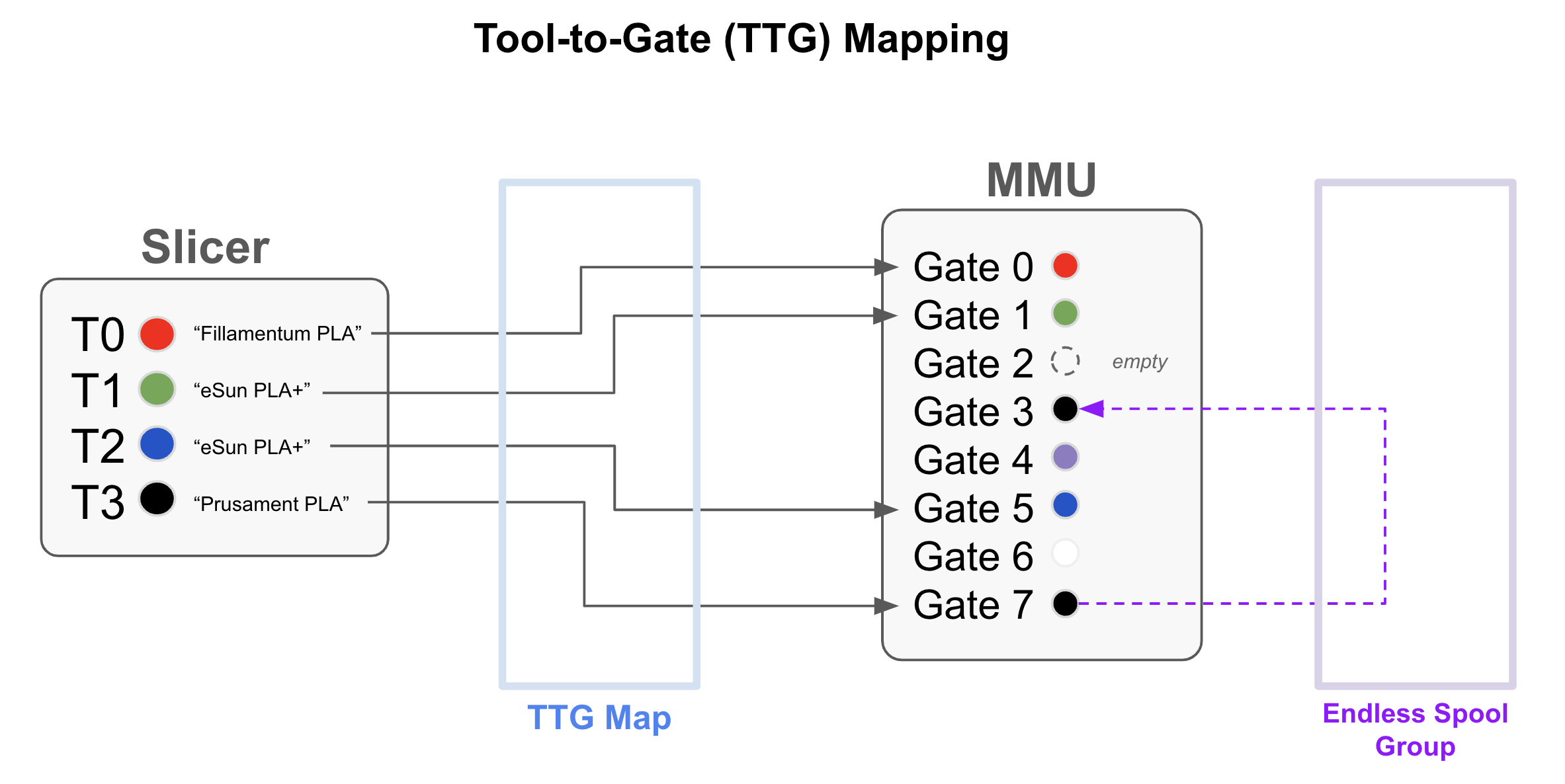
- Tool-to-Gate (TTG) map - which gate answers each
Txtool change. Defaults to a straight pass-through (T0→ gate 0,T1→ gate 1, ...) but can be remapped freely.
The TTG map is the layer that makes the other two useful together: it's how a print sliced for 4 colors can pull from whichever 4 gates you actually loaded, in whatever order, without re-slicing or reloading anything. EndlessSpool groups build on the same map - grouped gates are just alternative TTG targets Happy Hare can swap to automatically when one runs out.
Commands
Gate map
MMU_GATE_MAP                                              # Display the current map
MMU_GATE_MAP GATE=8 MATERIAL=PLA COLOR=ff0000 TEMP=205 AVAILABLE=1
MMU_GATE_MAP GATE=8 AVAILABLE=1                           # Just mark it available again (e.g. after reloading from spool)
MMU_GATE_MAP GATES=0,1,2,3,4,5,6,7,8 AVAILABLE=-1         # Bulk reset every gate's availability to "unknown"
Full parameter reference: MMU_GATE_MAP
- also takes VENDOR=, NAME=, SPOOLID=, RFID=, SPEED=, and
BYPASS=1 to set the same attributes for the bypass "gate." COLOR= takes
a w3c color name or an
RRGGBB(aa) hex value - no #, since Klipper's config parser doesn't
like it there.
Note
Material names aren't enforced or validated against a fixed list -
whatever you type in MATERIAL= is what shows up everywhere else. Short,
all-caps names like PLA, ABS+, TPU95, PETG read best in the
limited space a gate-map display gives each entry.
A plain (no Spoolman) map looks like this:
MMU_GATE_MAP
Gates / Filaments:
0: On spool; TPU     | 225C | orange | Orange Pie
1: Unknown;  PETG    | 220C | red    | eMarble
2: Buffered; PLA     | 210C | 8cdfac | Matte Green
3: Empty;    Unknown | n/a  | n/a    | Unknown
If you've enabled Spoolman, the same command gains an
Id: field and everything else about it works identically - it's the same
command and the same map either way, just with one extra column. See that
page for the Spoolman-specific console format and sync behavior.
Tip
The initial map (and the defaults MMU_GATE_MAP RESET=1 restores) come
from a default_gate_* block in mmu.cfg - default_gate_status,
default_gate_material, default_gate_color, default_gate_temperature,
default_gate_spool_id, default_gate_speed_override, and so on, each a
comma-separated list the length of your gate count. Commented out by
default, meaning gates reset to empty/unknown attributes. Filled in for a
9-gate MMU, it would look something like this:
default_gate_status:         1,      0,      1,      2,      2,     -1,     -1,      0,      1
default_gate_filament_name:  one,    two,    three,  four,   five,   six,    seven,  eight,  nine
default_gate_material:       PLA,    ABS,    ABS,    ABS+,   PLA,    PLA,    PETG,   TPU,    ABS
default_gate_color:          red,    black,  yellow, green,  blue,   indigo, ffffff, grey,   black
default_gate_temperature:    210,    240,    235,    245,    210,    200,    215,    240,    240
default_gate_spool_id:       3,      2,      1,      4,      5,      6,      7,      -1,     9
default_gate_speed_override: 100,    100,    100,    100,    100,    100,    100,    50,     100
Happy Hare also exposes filament color as ready-to-use RGB triples
(printer.mmu.gate_color_rgb) for driving LEDs or anything else that wants a
plain (r, g, b) tuple instead of a color name - see
Feature: LEDs for how Happy Hare's own LED segments use
it. If you'd rather drive your own separate LED strip - one Happy Hare
doesn't manage as part of its own LED effects - a macro can read the triple
for a given gate directly and hand it to Klipper's own SET_LED:
{% set gate_color_rgb = printer['mmu']['gate_color_rgb'] %}
{% set rgb = gate_color_rgb[GATE] %}
SET_LED LED=my_led INDEX={GATE + 1} RED={rgb[0]} GREEN={rgb[1]} BLUE={rgb[2]} TRANSMIT=1
Any color format MMU_GATE_MAP COLOR=... accepts (a name or a hex code)
converts to this triple automatically, so the macro never needs to parse
color strings itself.
Slicer tool map
Printer variable: printer.mmu.slicer_tool_map
Set up automatically by the recommended print-start macro (see the g-code preprocessing that fills it in) - you shouldn't normally need to touch this by hand. The underlying printer variable looks roughly like this, per tool actually used in the print:
printer.mmu.slicer_tool_map:
  initial_tool: 0                  # Tool expected to be loaded at the start of the print
  referenced_tools: [0, 3]         # Every tool referenced anywhere in the print (T0 and T3 here)
  tools.0.color: ff0000            # RRGGBB color for T0
  tools.0.material: ABS            # Material for T0
  tools.0.temp: 240                # Extruder temperature for T0
  tools.0.name: eSun ABS Red       # Filament name for T0
  tools.0.in_use: 1                # T0 is actually used in this print
  tools.3.color: 00e410
  tools.3.material: ASA
  tools.3.temp: 245
  tools.3.name: eSun ABS+ Lt Green
  tools.3.in_use: 1
  purge_volumes: [[...], [...]]    # N x N purge-volume matrix, tool X to tool Y
To see what's currently loaded for the print in progress:
MMU_SLICER_TOOL_MAP
--------- Slicer MMU Tool Summary ---------
2 color print (Purge volume map loaded)
T0 (gate 0, ABS, ff0000, 240°C)
T3 (gate 3, ASA, 00e410, 245°C)
Initial Tool: T0
-------------------------------------------
Full parameter reference: MMU_SLICER_TOOL_MAP.
The purge-volume matrix this command can also show is its own topic -
covered on the Tip Forming and Purging feature page.
Tool-to-Gate (TTG) map
MMU_TTG_MAP
TTG Map:
T0 -> Gate 0
T1 -> Gate 1 [SELECTED]
T2 -> Gate 2
T3 -> Gate 3
Add DETAIL=1 to also see EndlessSpool grouping:
MMU_TTG_MAP DETAIL=1
TTG Map & EndlessSpool Groups:
T0 -> Gate 0
T1 -> Gate 1 Group A: 1> 4> 7 [SELECTED]
T2 -> Gate 2
A more tangled example, with EndlessSpool disabled, showing what a map can look like once tools have been remapped and swapped by hand:
T0 -> Gate 0 (S)
T1 -> Gate 1 (B) [SELECTED on gate 1]
T2 -> Gate 2 (B)
T3 -> Gate 3 (S)
T4 -> Gate 3 (S)
T5 -> Gate 3 (S)
T6 -> Gate 8 (S)
T7 -> Gate 7 ( )
T8 -> Gate 6 (S)
T0, T1, T2 and T7 are still mapped straight through to their own-numbered
gate; T3, T4 and T5 have all been mapped onto gate 3 - handy for a print
that calls for three tools but where you've only loaded one matching spool;
T6 and T8 have had their gates swapped entirely. The (S)/(B) markers
show gates 0 and 3 are loading fresh from spool while gates 1 and 2 are
loading from buffer (faster); gate 7's ( ) marks it empty/unavailable -
selecting T7 mid-print would pause rather than load.
Remap a tool to a different gate:
MMU_TTG_MAP TOOL=0 GATE=8               # T0 now pulls from gate 8 (and T8 now pulls from gate 0 - they swap)
MMU_TTG_MAP TOOL=1 GATE=1 AVAILABLE=1   # Remap and mark the gate available in one go
MMU_TTG_MAP MAP=8,7,6,5,4,3,2,1,0       # Replace the whole map in one command (index = tool number)
Full parameter reference: MMU_TTG_MAP.
A few real uses for this: your slicer expects filament in a different order
than you actually loaded it; some tools in the g-code don't have filament
loaded and you'd rather remap them than have the print pause; or turning a
multi-color print monochrome by remapping every tool to one gate.
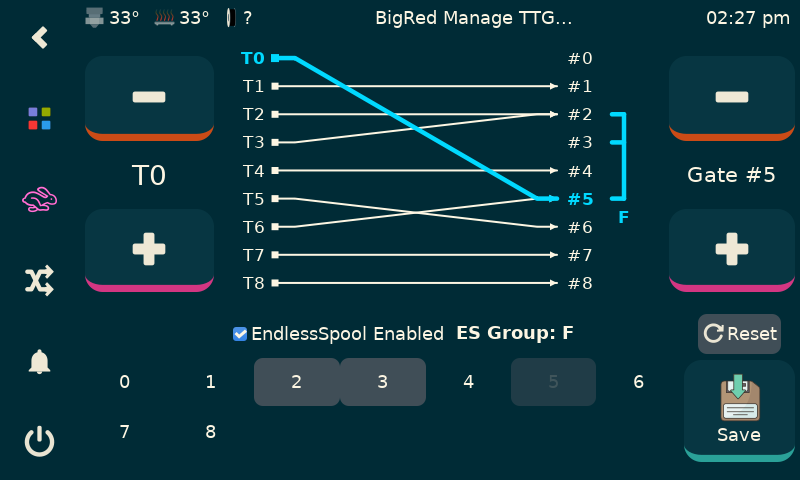
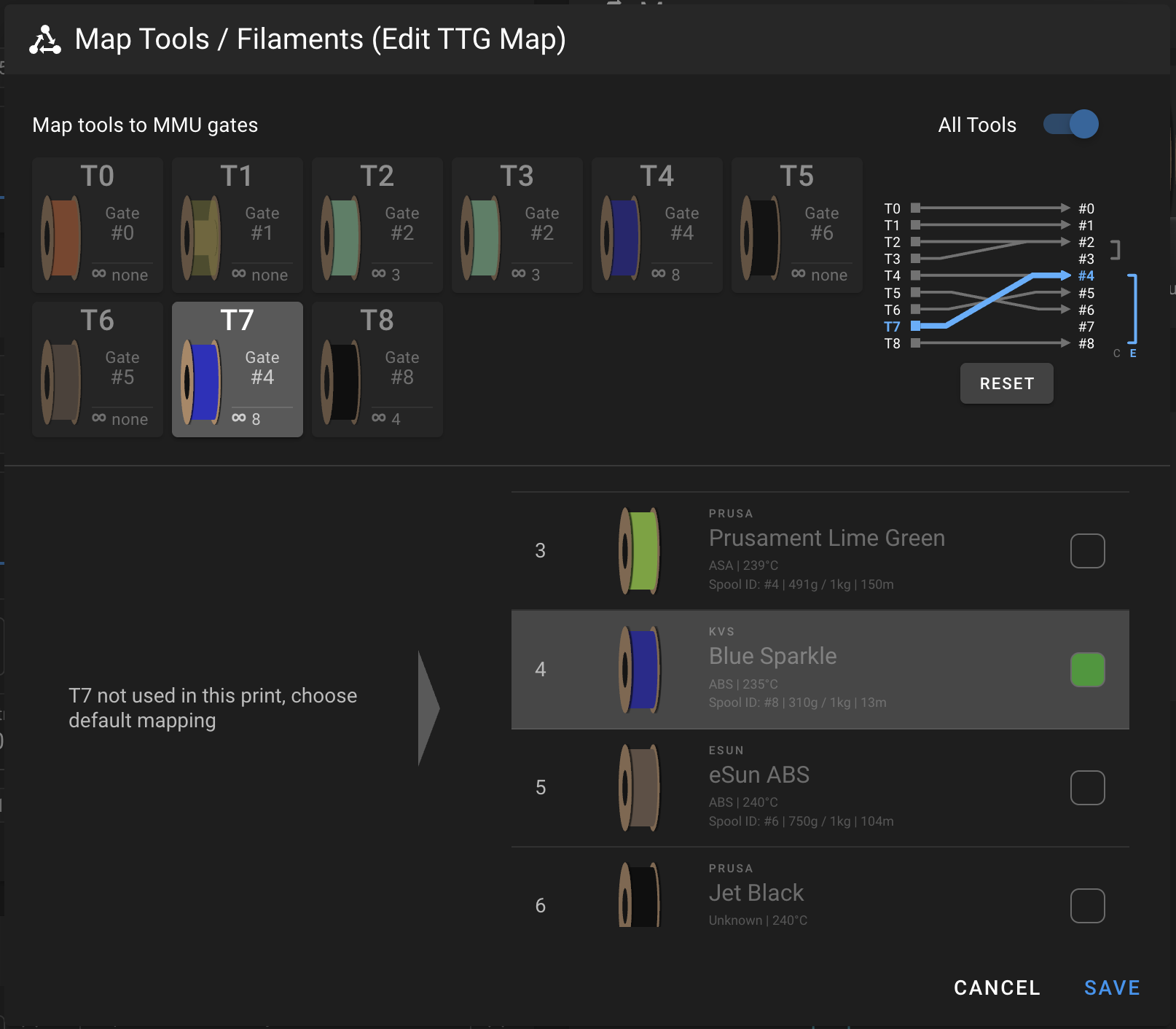
Some GUIs make this visual rather than command-driven - KlipperScreen (Happy Hare edition) and Mainsail/Fluidd both have a TTG editor:
|
|
Tip
The default TTG map (and EndlessSpool groups) can also be preset in
mmu.cfg's default_ttg_map/default_endless_spool_groups -
restored by MMU_TTG_MAP RESET=1/MMU_ENDLESS_SPOOL RESET=1
respectively. See Feature: EndlessSpool &
Runout Detection for how groups
actually behave during a runout - this page only shows them as they
appear in the TTG map above.
Tuning
Automatic TTG mapping
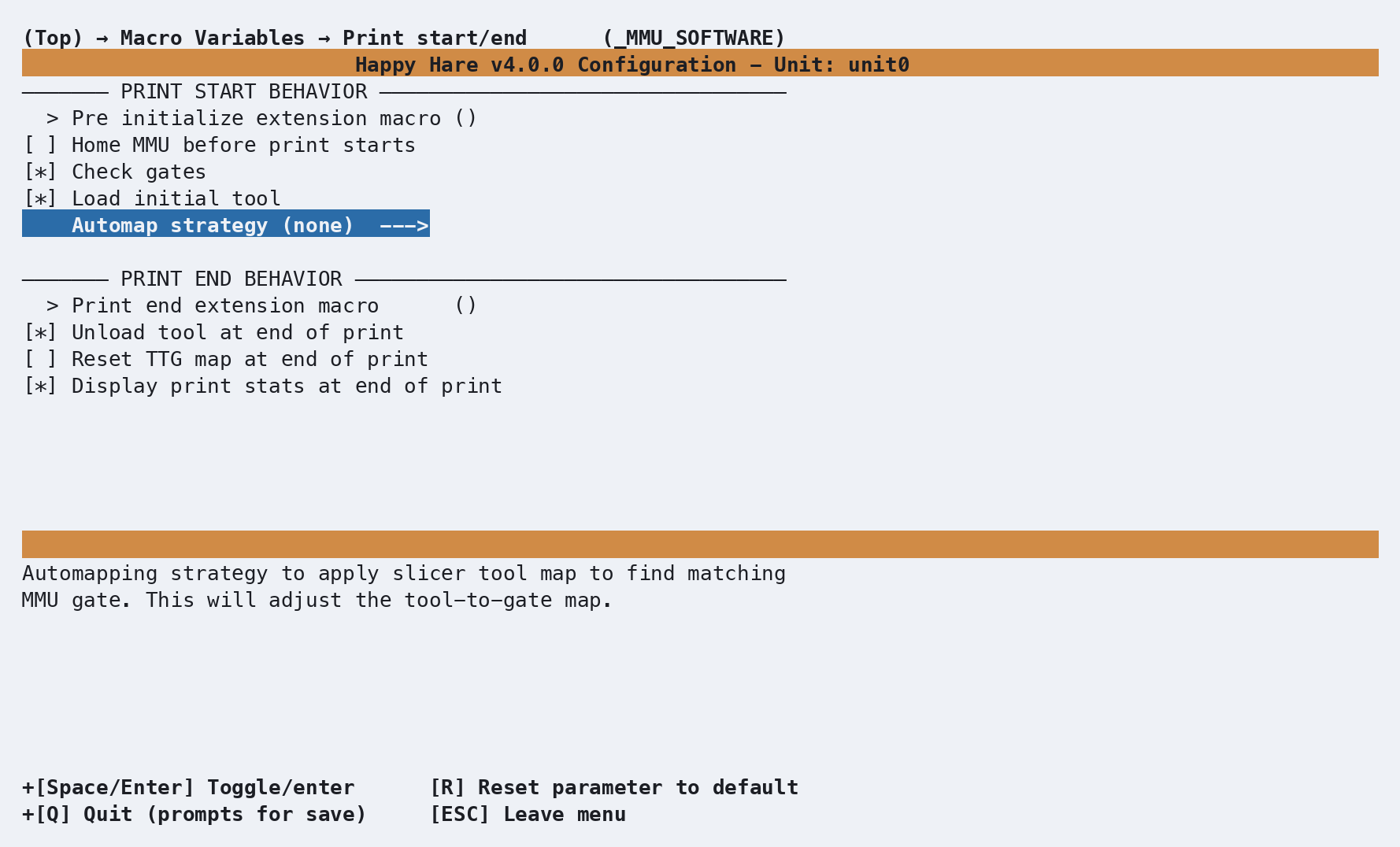
Rather than remap tools by hand every time, Happy Hare can do it
automatically once the slicer tool map is loaded, based on a strategy set in
mmu_macro_vars.cfg (automap_strategy
in the _MMU_SOFTWARE_VARS macro, also reachable from Macro Variables →
Print start/end (_MMU_SOFTWARE) in menuconfig):
none- no automapping (the default).filament_name- match the tool's expected filament name to a gate.material- match by material only, ignoring color - useful if you have several spools of the same color in different materials.color- match a gate whose material matches and whose color matches exactly.closest_color- match the closest available color rather than an exact one, and reports how close the match was.spool_id- not yet implemented; reserved for slicers that pass a spool ID directly.
If more than one gate matches, Happy Hare uses the last match found and logs a warning rather than guessing - it does not create an EndlessSpool group automatically, so if you want gate 3 and gate 7's matching PLA to act as one EndlessSpool pair, set that group up yourself.
You can also trigger a single tool's automap by hand, after the slicer tool map is loaded:
MMU_SLICER_TOOL_MAP TOOL=1 AUTOMAP=filament_name
MMU_SLICER_TOOL_MAP TOOL=6 AUTOMAP=closest_color
The companion Reset TTG map at end of print setting
(variable_reset_ttg, same macro section) clears any remapping back to
pass-through once a print finishes, so automap starts fresh next time
instead of compounding.
Troubleshooting
- A gate's material/color looks wrong after a print - check whether
variable_reset_ttg/automap remapped things at the end of the last print; the gate map itself doesn't change on its own, but which gate a tool points at can. - Automap picked a gate you didn't expect - if more than one gate
matched the strategy, the last match wins; narrow the ambiguity (unique
names, or a tighter
closest_colorset) or just remap that one tool by hand afterward. MMU_TTG_MAP MAP=...didn't do what you expected - the list is positional (index = tool number, value = gate), and its length must match your gate count - double check you didn't transpose it with aMMU_GATE_MAP GATES=...list, which is index = gate number instead.
See also
- Command Reference:
MMU_GATE_MAP - Command Reference:
MMU_TTG_MAP - Command Reference:
MMU_SLICER_TOOL_MAP - Printer Variables: gate and tool maps
- Feature: Spoolman / Filament Hub
- Feature: EndlessSpool & Runout Detection
- Feature: LEDs