Mainsail / Fluidd
Mainsail and Fluidd both integrate directly with Happy Hare: a dedicated "MMU" panel for monitoring and operating the MMU, plus enhancements to the existing Extruder panel for tool selection and per-tool filament color. The maintainer's own forks - mainsail-happy-hare-edition and fluidd-happy-hare-edition - track the newest enhancements ahead of when they land in the mainline projects, if you want the latest without waiting.
Main Panel
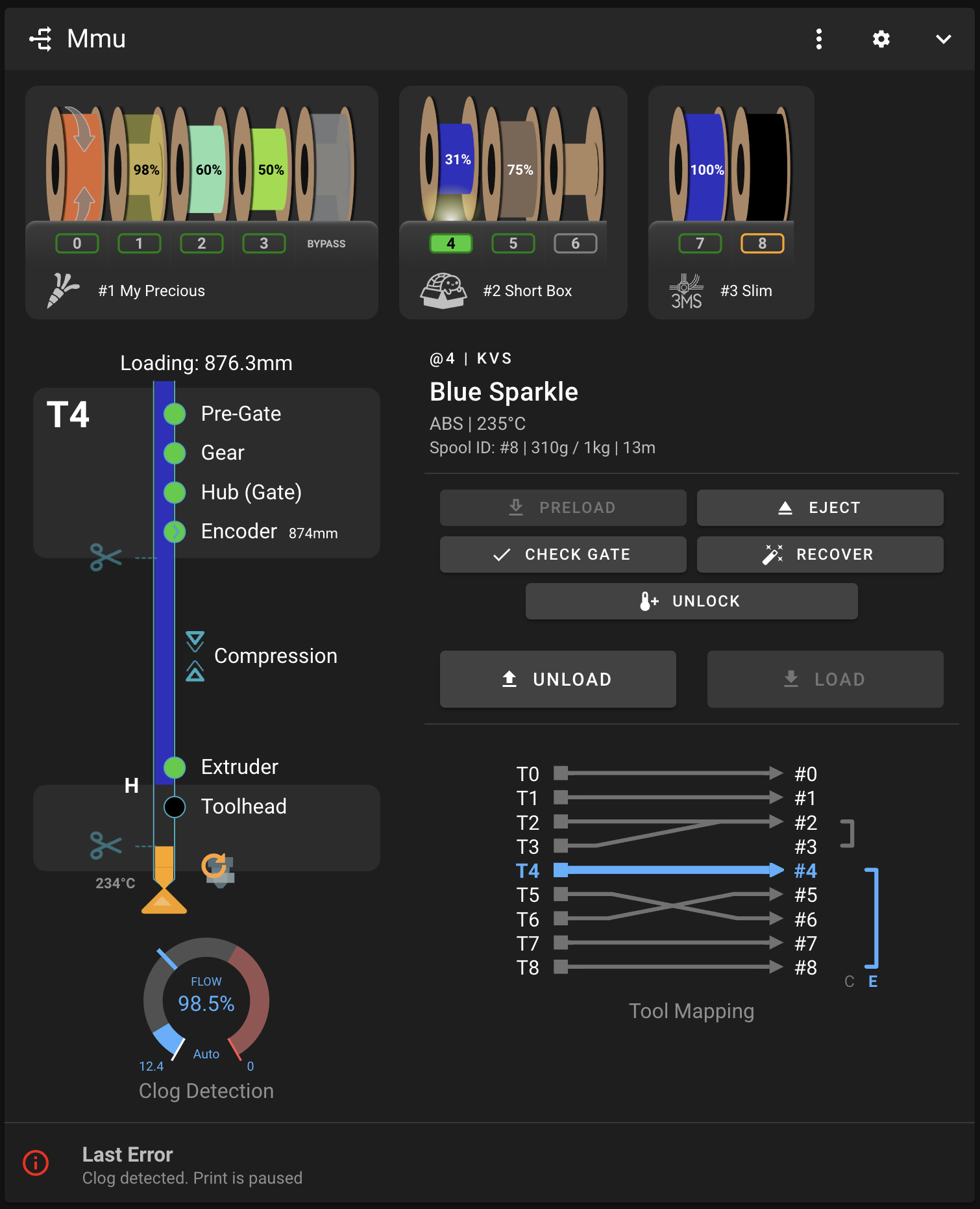
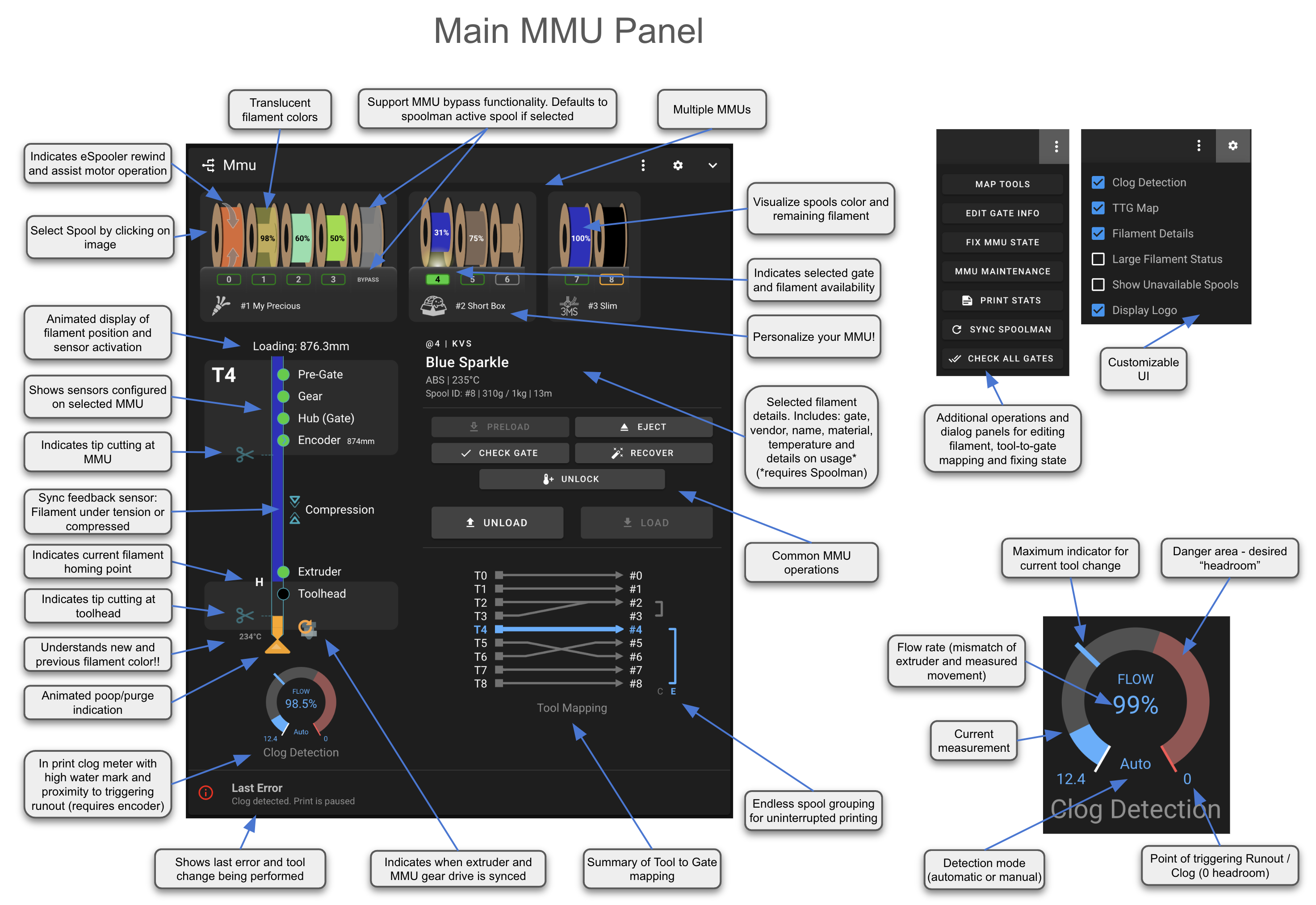
The MMU panel is dedicated to monitoring and operating the MMU at the physical gate level - the Extruder panel (below) still handles day-to-day tool selection.
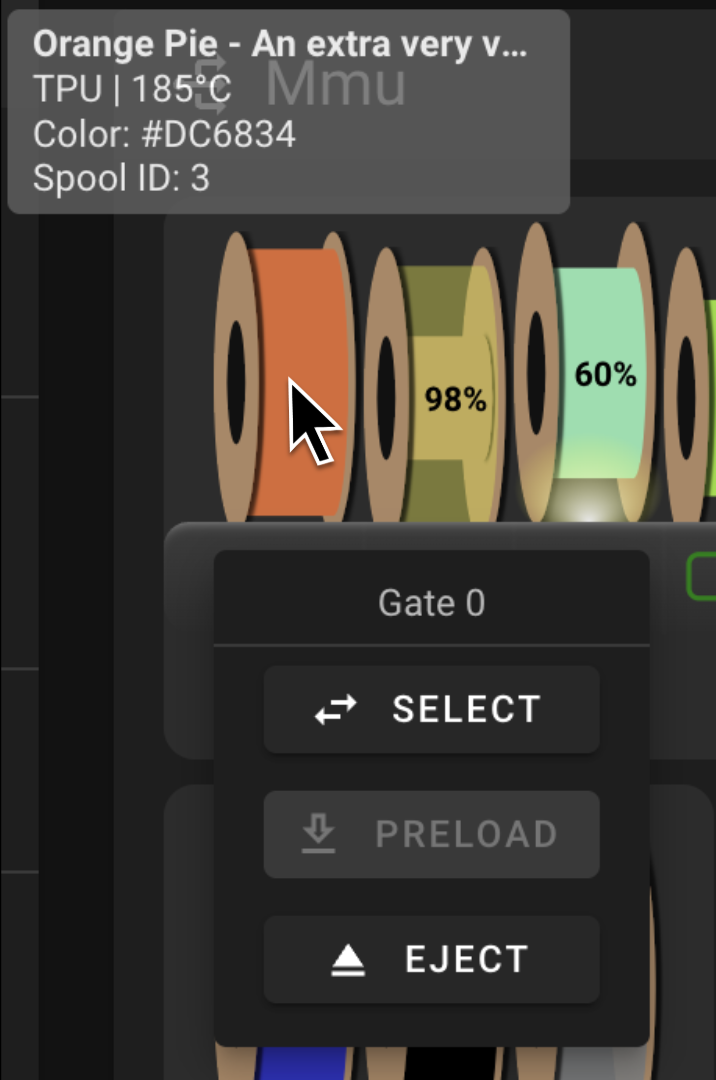
The general workflow is: select the gate/lane to operate on, then pick an action. On designs with a separate gear stepper per gate, some actions are available even on a gate that isn't currently loaded - selecting a non-active gate opens a menu of what's possible there, such as ejecting filament from a gate that isn't loaded:
Tool-to-Gate Mapping
Starting a multi-color print gives the opportunity to map the tools the slicer expects onto the MMU's physical gates; the same map can also be edited at any time outside of a print.
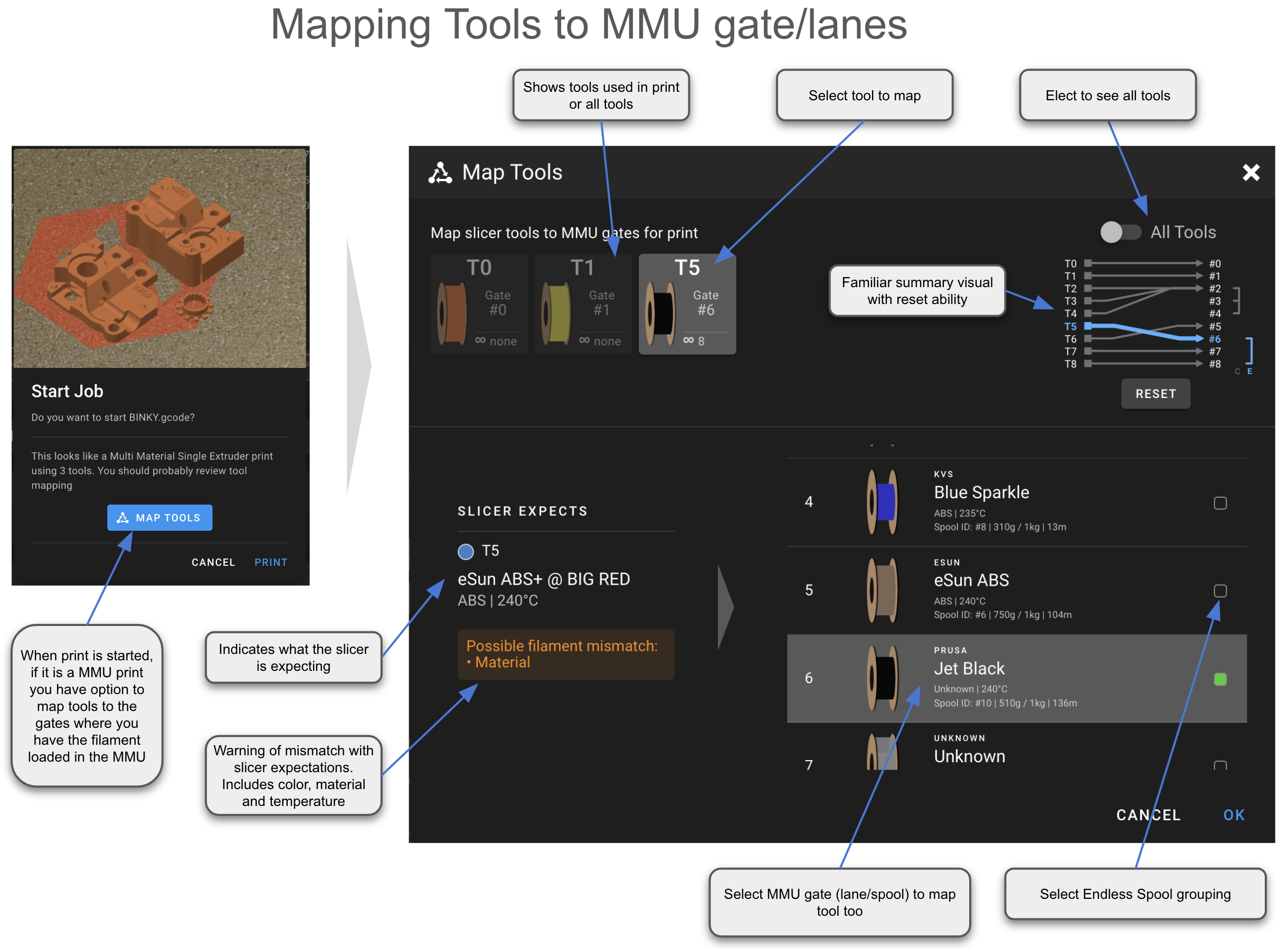
See Feature: Gate/TTG Maps for how the mapping itself works.
Gate Map Editor
Edits the attributes of the filament loaded in each gate directly, or links a gate to a Spoolman spool and lets Happy Hare pull attributes from there instead.
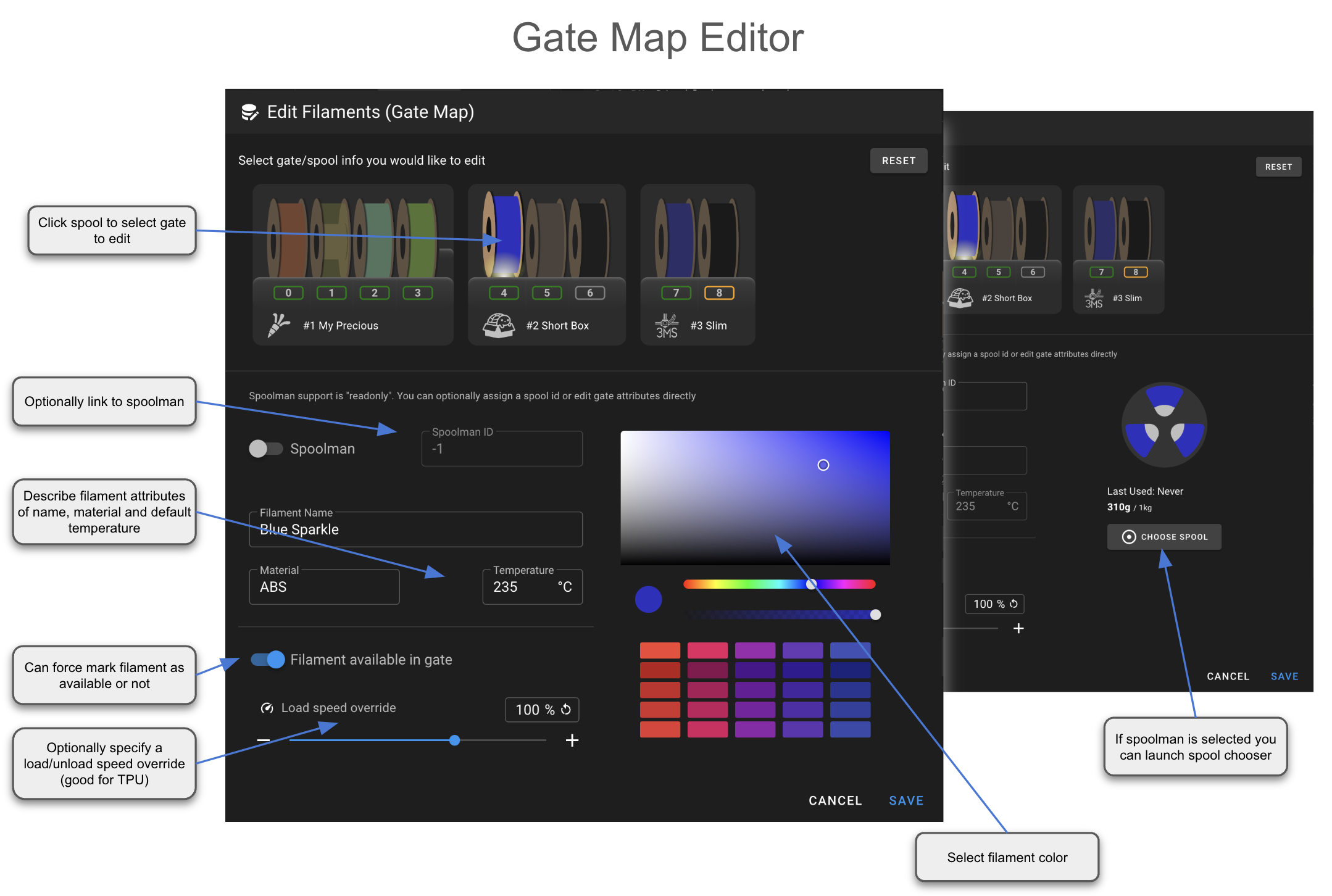
See Feature: Spoolman / Filament Hub for the Spoolman side of this.
Maintenance and State Recovery
If the MMU pauses and can't recover automatically, the Recover screen fixes that; the Maintenance screen covers setup/operations specific to your particular MMU.
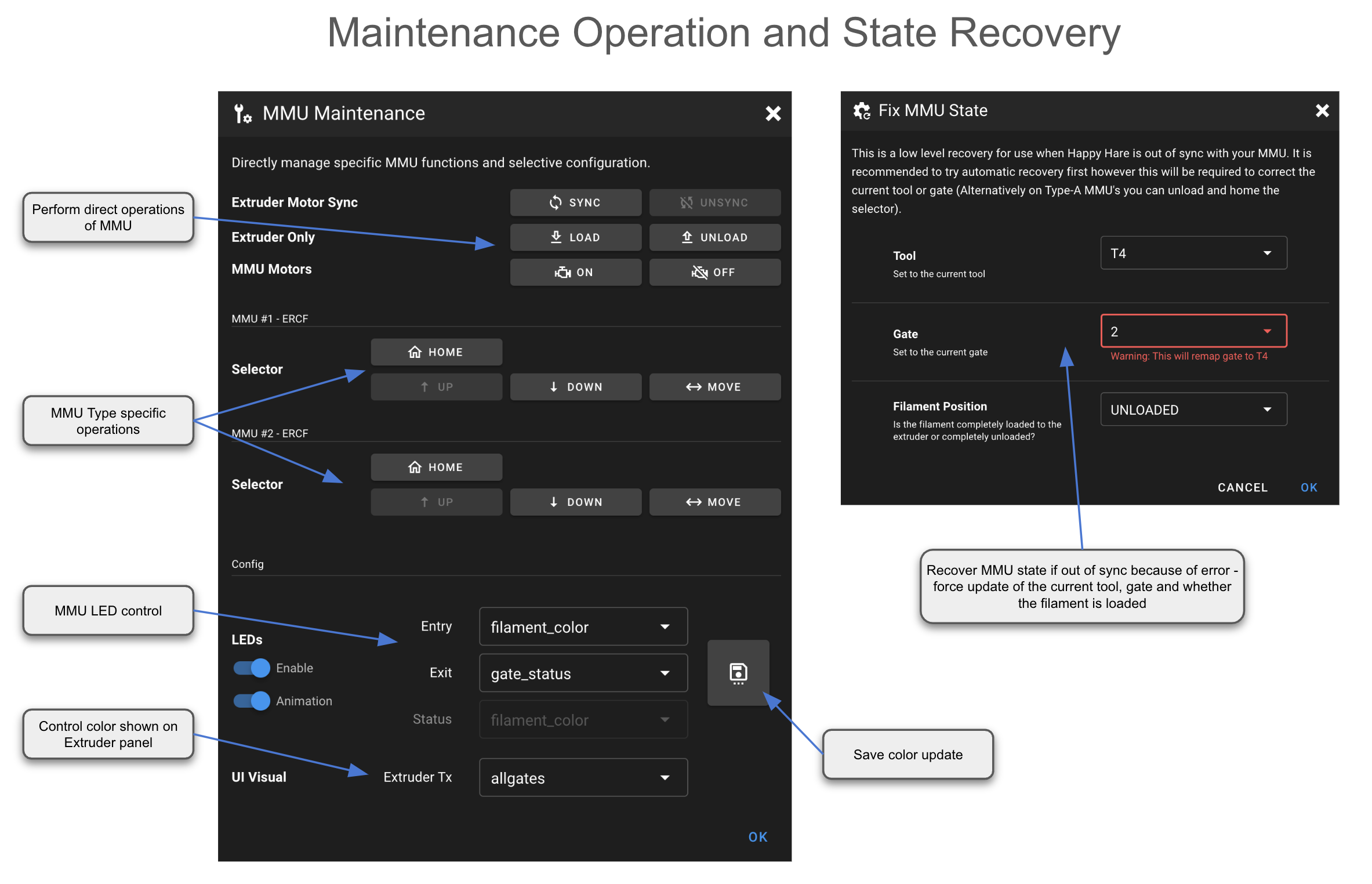
See Operation for what state recovery actually does and when it's needed.
Extruder/Filament Color
Mainsail and Fluidd both support showing extra per-extruder attributes,
which Happy Hare uses to give the "Tx" tool buttons a live color swatch. At
print start, Happy Hare reads the sliced file's tool map into its own
"Slicer Tool Map" (see Command Reference:
MMU_SLICER_TOOL_MAP) and
reports it to the UI. Which color source feeds the swatch is controlled by
t_macro_color in mmu.cfg:
t_macro_color: slicer
| Value | Shows |
|---|---|
slicer (default) |
Color from the slicer's own tool map - what the slicer expects loaded |
allgates |
Color of every gate in the gate map, run through the current Tool-to-Gate map |
gatemap |
Same as allgates, but hides tools with no filament |
off |
Disables this entirely |
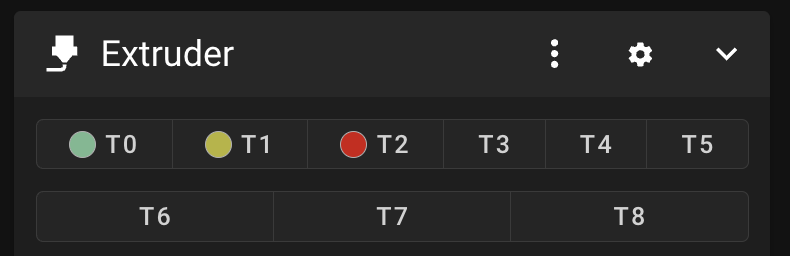
A three-color print (T0, T1, T2) with the default slicer setting -
unused tools show no color:
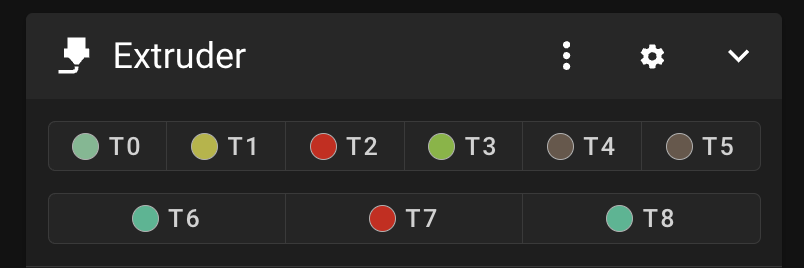
allgates instead shows every gate's actual loaded color:
gatemap is the same idea but hides gates with nothing loaded:
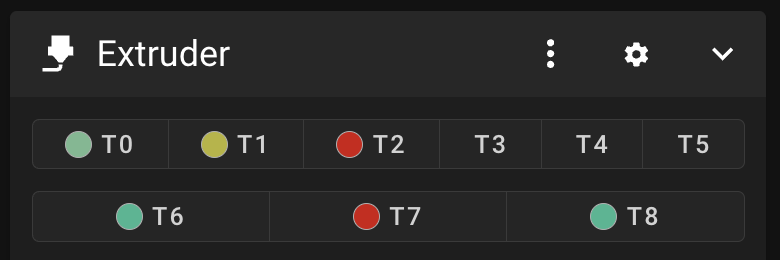
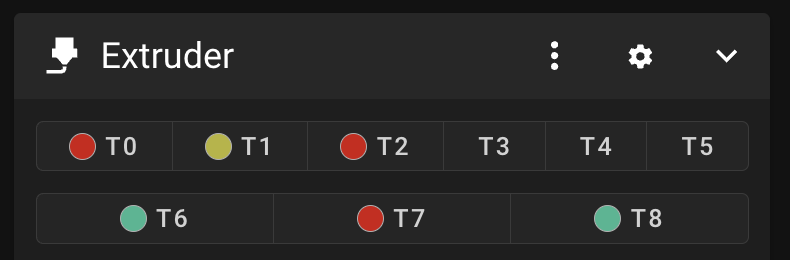
allgates/gatemap both respect the Tool-to-Gate map - remapping T0 to
gate 7 with MMU_TTG_MAP TOOL=0 GATE=7 immediately changes T0's displayed
color to whatever gate 7 has loaded:
Tip
No Klipper restart needed to try these - change it live with
MMU_TEST_CONFIG t_macro_color=allgates QUIET=1, and switch back the
same way. Worth remembering these are Tools, subject to the
Tool-to-Gate map, unlike a gate's own LED color which always reflects
that physical gate regardless of mapping.
Fan and MCU sensor visibility
Generated managed, heater and controller fans each have a Hide in Mainsail / Fluidd switch in their menuconfig hardware menu. It is enabled by default; turn it off to show that fan type. On a per-gate design, one switch applies to all gates of that type.
Hidden names begin with _, for example _unit0_fan; visible names omit
that prefix, for example unit0_fan. The fan's automatic behavior is
unchanged. Regenerate the configuration and restart Klipper, and update
custom macros that refer to a renamed object. See
Fans & Airflow for names and real
menu screenshots. Board-supplied custom fans may be configured in the
hardware file identified by menuconfig instead.
Create MCU CPU sensors? has its own visibility option under MMU Features / Additions. MCU sensors default to hidden for shared-MCU layouts and visible for per-gate MCU layouts. Hiding them does not prevent managed fans from using their temperatures.
See also
- KlipperScreen - the equivalent touchscreen UI
- Feature: Gate/TTG Maps
- Feature: Spoolman / Filament Hub
- Command Reference:
MMU_SLICER_TOOL_MAP - Command Reference:
MMU_TTG_MAP